
Customization DS0720
Update SOP Accounts
Problem Definition:
ACME utilizes Dynamics GP in their Sales Order Processing. Standard Dynamics GP functionality allows the user to set the posting accounts for Sales Invoices and Sales Return documents to either pull from the Item Number or the Customer. ACME requires some posting accounts to correspond with their Selling Application and Channel. In the instance that they are selling a JV Tile Item, the posting account may need to be updated based on the Item and the Channel.
ACME’s Chart of Account structure is 3 segments:
- Segment 1: Two digits and represents “Selling Location”
- Segment 2: Five digits and represents the “Natural Account”
- Segment 3: Three digits and represents the “Channel”
ACME uses the Sale Document’s User Defined List fields to house the corresponding Selling Location and Channel. The enhancement should include an Posting Account Update Utility that will update Segment 1 of the GL to the first 2 digits of UDF List Field #1 AND update Segment 2 of the GL to the first 3 digits of UDF List Field #2:
UDF List Field #1: Selling Location
Current options for UDF List #1 include:
- 10-Wholesale
- 20-ACME
UDF List Field #2: Channel
Current options for UDF List #2 include:
- 101-BKSR
- 103-SISR
- 104-NYRS
- 201-ACME.COM
- 202-MB.COM
- 300-eBay
- 302-Amazon
ACME’s JV Tile Items all begin with the same prefix: “JV-TILE-“. When a JV Tile Item exists on the Sales Invoice or Sales Return document AND the Sales Document’s UDF List Field #2 is set to 101-BSKR, the GL Posting Account for the 3rd segment must be updated to “102”.
Not all GL Posting Accounts need to be updated by the enhancement. Only the following GL Posting Accounts should be substituted:
- Sales
- Accounts Receivable
- Trade
- Freight
- Miscellaneous
- Taxes
- Markdown
- COGS
- Returns
Please Note: The Inventory Account should NEVER be updated.
ACME does not want the Posting Accounts to update automatically for the Sales Invoice or Sales Return documents during the Posting process. They would prefer that users select a Sales Batch from the Sales Batch Entry window. Then, the user should have access to manually run the Sales Posting Account Update Utility on each Sales Batch individually prior to posting the Batch. This will allow the user to print the Batch Edit List to review the changed accounts prior to posting.
Design Features:
Sales Posting Account Update Utility
Navigation: Transactions >> Sales >> Sales Batches >> Additional >> Account Update Utility
The user will enter the Sales Batch Entry window, enter a Batch ID or select one from the lookup, and navigate to Additional >> Account Update Utility
The enhancement will:
- Validate that at least one Sales Invoice or Sales Return document exists within the Sales Batch. The Posting Account Update Process will only update the Posting Accounts of Sales Invoice and Sales Return documents. If no Sales Invoices or Sales Return documents exist, the user will be warned of the condition and will be unable to continue.
- Validate that all Sales Invoice and Sales Return documents within the Batch ID are not active. For example, a document is considered active if a user has the document open in the Sales Transaction Entry window. (Active documents are included in the tempdb.DEX_LOCK table.) If any documents are active, the user will be warned of the condition and unable to continue.
- If the Sales Batch passes the validation step, the user will be prompted with the following message, “Update the Posting Accounts for this Batch?” If the user selects NO, the enhancement will do nothing. If the user selects YES, the enhancement will run the Posting Account Update Utility process.
- The enhancement will update the Posting Accounts of each Sales Invoice and Sales Return in the Batch in the following manner:
- The enhancement will select the first Sales Invoice or Sales Return document from within the Batch that contains a value in either the UDF List Field #1 or in the UDF List Field #2. If the Sales Invoice or Sales Return document does not contain a value in either field, the document will be skipped.
PLEASE NOTE: For the steps that follow, if the enhancement attempts to update a GL Account to an invalid GL Account during the process, the GL Account will NOT be updated. All validated GL Accounts will be updated. An error report will print, at the end of the process, detailing the Sales Document Number, current GL Account and invalid GL Account.
- The enhancement will attempt to update the Sales Line Item Posting Accounts first. The Sales Line Item Posting Accounts to update include the following GL Accounts:
-Cost of Sales
-Sales
-Markdowns
-Returns (For Sales Return Documents only.)
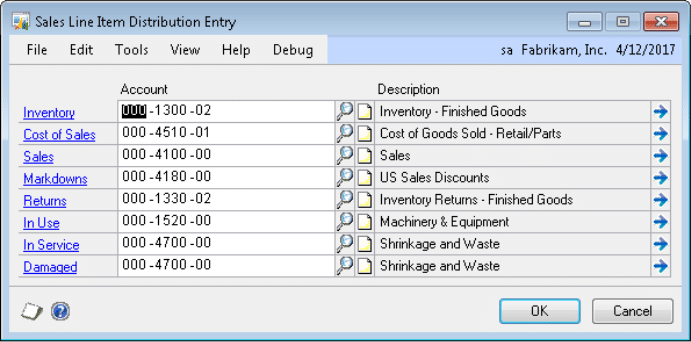
The enhancement will update all Sales Line Item’s Posting Accounts referenced above, regardless of whether the Account will be utilized during the Posting process or not. For example, the Markdown Account will be substituted even if there is NOT a Markdown Amount or Percentage on the Sales Line.
The enhancement will update the Sales Line Items’ Posting Accounts in two steps. The first step is to update Sales Lines Items which contain the following Item Numbers:
-All Non-JV Tile Lines (Item Numbers which do NOT start with JV-TILE-“)
– JV Tile Lines where UDF List Field #2 is NOT set to 101-BKSR
Segment 1 of the GL Account will be updated to the first 2 digits of the value in UDF List Field #1. If a value does NOT exist in UDF List Field #1, then Segment 1 will not be updated.
Segment 3 of the GL Account will be updated to the first 3 digits of the value in UDF List Field #2. If a value does NOT exist in UDF List Field #2, then Segment 3 will not be updated.
The second step is to update:
- All JV Tile Lines where UDF #2 is set to 102-BKSR
Segment 1 of the GL Account will be updated to the first 2 digits of the value in UDF List Field #1. If a value does NOT exist in UDF List Field #1, then Segment 1 will not be updated.
Segment 3 of the GL Account will be updated to “102”.
PLEASE NOTE: Updating the Sales Line Items first, allows the enhancement to properly recalculate the Sales Order Header GL Accounts and Distribution totals from the Sales Lines. This includes updating the Sales Order Header’s:
- Sales Account(s) and totals
- COGS Account(s) and totals
- Markdown Account(s) and totals
- Return Account(s) and totals
The enhancement will then attempt to update the Sales Header Posting Accounts. The Sales Header Posting Accounts to be updated include the following GL Accounts:
- A/R Account
- Freight
- Trade Discounts
- Taxes
- Miscellaneous
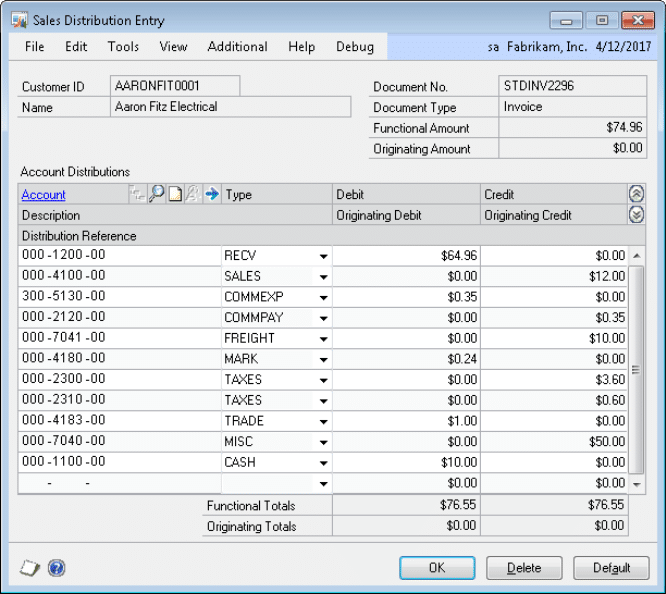
Unless noted as an exception below, Segment 1 of the GL Account will be updated to the first 2 digits of the value in UDF List Field 1. Segment 3 of the GP Account will be updated to the first 3 digits of the value in UDF List Field 2.
EXCEPTIONS:
A/R Account: If JV Tile Lines exist on the Sales Document and the UDF List #2 is set to 101-BKSR, then the enhancement will create an additional RECV line for the value of the JV Tile Lines. The value of the JV Tile Lines will be calculated as the sum of the Extended Price of the JV Tile Line Items. The Extended Price includes any Markdowns for the Sales Line Item already. The original RECV line will be reduced by the same amount.
PLEASE NOTE:
- If additional Sales Line Items or charges are added to the Sales Invoice or Sales Return document, the user must run the Posting Account Update Utility again to ensure all Sales Posting Accounts are updated.
- As defined in the ACME requirements, the Sale Return Account will only be updated if a user enters a Quantity into the “Returned” Quantity Type as noted by the red arrow below.
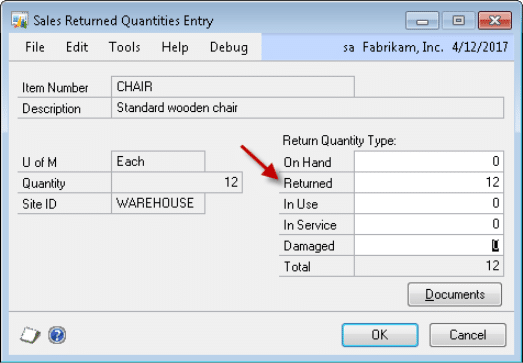
Entries into “On Hand” will impact the Inventory Account; Entries into In Use will impact the In Use Account; Entries into “In Service” will impact the In Service Account; Entries into “Damaged” will impact the Damaged Account. These accounts are NOT included in the update utility at ACME’s request.
- The following GL Accounts and totals will NOT be broken out to include a separate entry for JV Tile Lines should they exist on the Sales Document: Trade Discounts, Freight, Miscellaneous, Taxes.
Assumptions/Requirements:
- ACME’s Valuation Method is FIFO Perpetual
- The Manufacturing Module is NOT utilized
- Kits are used
- Service, Flat Fee and Misc Charge Items are NOT used
- Dropship Sales Line Items are used
- The Posting Account Update Utility will update only the GL Posting Accounts for the Sales Invoice and Sales Return documents
- Non-Inventory Items (Items not in the Item Master) are Not used
- The Sales Order Processing Setting for Posting Accounts is set to Item
- This enhancement does NOT include any modifications to the Batch Edit List
- Although GL Accounts in the Sales Tax Summary Entry window may be updated by the user, the enhancement will only change the resulting Tax GL Accounts on the Sales Distribution Entry window and will not change the Sales Tax Summary Accounts.
- The enhancement will update the Trade Discounts, Freight, and Miscellaneous GL Accounts within the Sales Distribution Entry window only.